All Document Reader:PDF Viewer
One Stop AppsBusiness
3.3206.00 Reviews
- Version
- 3.2.8
- Installs
- 10.00M
- Age Rating
- Everyone
Screenshots
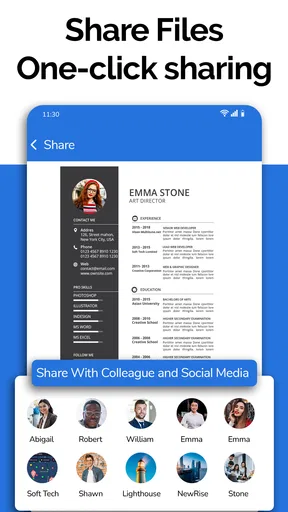
Our Review of All Document Reader:PDF Viewer
 Analysis by Appyee
I treat a document reader as a small but important utility: it may open a file only briefly, yet that file can contain a bill, a work draft, or personal details. That makes convenience only part of the decision. All Document Reader: PDF Viewer is a free business app from One Stop Apps, and its appeal is having common document types gathered in one place. I’d consider it for quick access on a phone, while being deliberate about what I open and what choices I make around sensitive files.
What trust looks like in everyday use
A reader can make files easier to find without automatically being the right place for every file. I find it useful to separate two questions: does the app help me view a document, and am I comfortable using this particular app for the document in front of me? The first is about workflow; the second depends on the permissions, privacy information, and choices I can actually review on my device.
The app has an average rating of 3.8 from around 6,300 ratings, with about 119 written reviews, and has been installed over 5 million times. Those figures suggest that it is widely used, but they don’t tell me how it handles a specific file or whether it fits my personal privacy needs. I would treat popularity as context, not as a substitute for checking the app’s current permission prompts and privacy details before relying on it.
Make the permission choice deliberately
Document readers need access to documents in some form to do their basic job, but the exact access offered can differ by device and operating system. I would read each prompt rather than accepting it automatically, and use the narrowest available choice that still lets me open the files I need. If Android presents a file picker, selecting an individual document can be a sensible way to avoid granting broader access when that option is available.
It is also worth revisiting permissions after setup. A reader you installed to check one attachment may not need the same access indefinitely. I make a habit of checking an app’s permissions in system settings when my use changes, and I avoid treating a permission prompt as proof that a feature is safe or unsafe by itself. What matters is whether the requested access matches the task I’m asking the app to perform.
Think about the file before opening it
Some documents are low stakes: a public timetable or a menu, for example. Others can reveal an address, account details, a signature, or internal business information. I would use a familiar, trusted work system for highly confidential material, especially if my employer has rules about which apps are allowed. For a routine form or reading copy, a general-purpose viewer may be convenient, but I would still avoid opening sensitive files casually on a shared or borrowed phone.
There is a practical distinction between viewing a document and controlling its onward use. If I need to send a marked-up copy, I would check the saved result before sharing it, making sure the changes appear as intended and that I have selected the right file. A highlight or note can be useful for personal review, but it should not be mistaken for a formal approval process or a secure way to exchange confidential documents.
Keep control of your own workflow
The app is free to download, though it includes optional in-app purchases priced from $2.99 to $49.99 per item. I would check what a purchase offers in the app before paying, and whether I actually need it for my normal reading routine. If I only open an occasional PDF, the free version may be enough; if a paid option is presented, I’d compare its purpose with the task rather than assuming every extra is essential.
It is rated for Everyone and was released on December 7, 2023. Version 3.1.8 requires Android 7.0 or later. Those details help with basic compatibility decisions, but they don’t replace checking that the app still behaves as expected on your own phone. I’d also keep important originals in their usual storage or backup location rather than relying on a reader as the only place a document exists.
Using it as a document tool
If you're like me and constantly juggling between PDFs, Word documents, and spreadsheets on your phone, then you know how crucial it is to have a reliable app that can handle all these file types seamlessly. Enter All Document Reader: PDF Viewer, a nifty little app that claims to do just that. I've taken it for a spin, and here's what I found.
Getting Started with All Document Reader
First off, downloading the app was a breeze. It's available on both the Google Play Store and the Apple App Store, so whether you're on Android or iOS, you're covered. Once installed, the app immediately scans your device for documents, which is super handy if, like me, you’ve got files scattered all over the place.
User-Friendly Interface
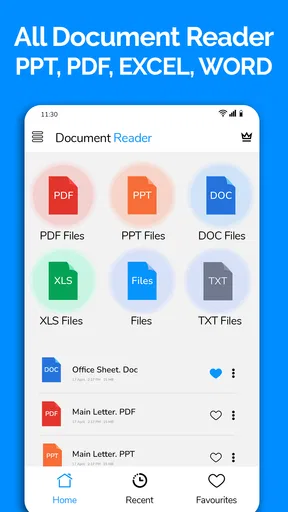
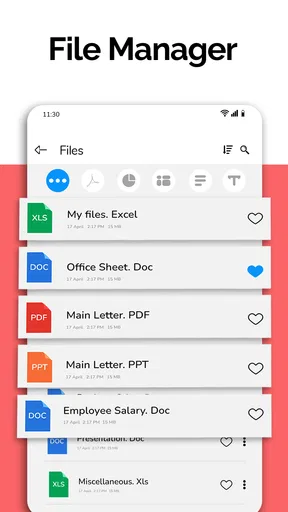
The interface is straightforward and intuitive. You won't find any unnecessary clutter here, just a clean design that makes navigation a breeze. The home screen shows a list of all your documents neatly categorized into PDFs, Word, Excel, and so on. I particularly appreciate the search function, which makes finding a specific file much quicker than scrolling through an endless list.
A good first test is to keep the filename of a downloaded document in mind, then search for that file rather than paging through the whole collection. For recurring work, a consistent naming habit—such as including a client or project name—can make that search more useful. I would still confirm the file itself before acting on it: two documents with similar names can be easy to confuse when you’re in a hurry.
Document Viewing Experience
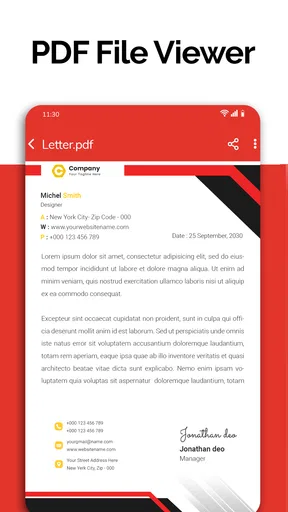
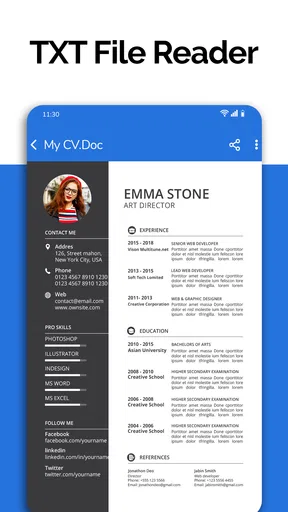
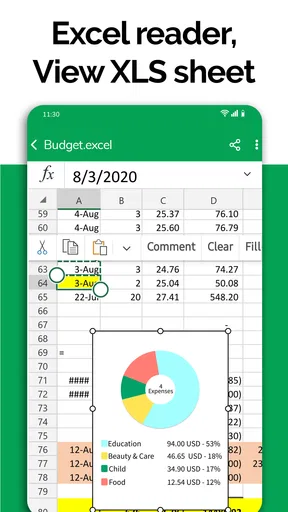
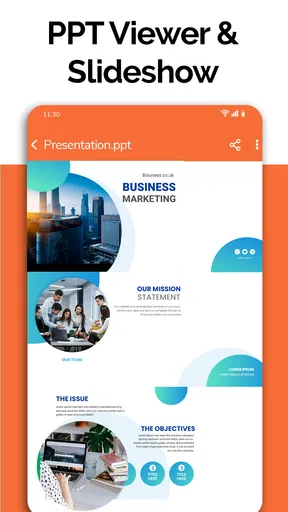
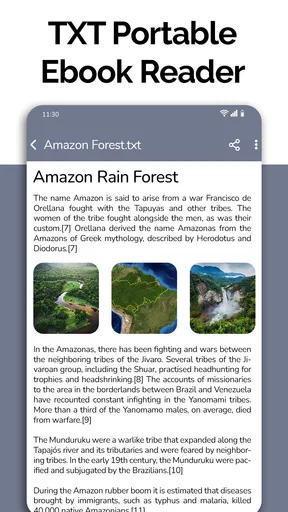
When it comes to viewing documents, the app performs exceptionally well. PDFs load quickly and with high clarity, and you can zoom in and out without any lag. For Word and Excel files, the app maintains the original formatting, so you won’t have to worry about any weird layout issues. It's like having a mini office suite in your pocket!
For a spreadsheet, I’d use a mobile reader to check a value or scan a short table, not to make a complicated financial decision based on a cramped screen. A quick comparison against the same file on a computer is wiser when columns, page breaks, or small text matter. Similarly, a document that looks readable on a phone may need a larger display for careful proofreading. The convenience is real, but the size of the screen still shapes what I can confidently review.
Additional Features
One of the standout features of the app is its annotation tools for PDFs. You can highlight text, add comments, and even draw directly on the document. This is a game-changer for anyone who needs to review or markup documents on the go. Another cool feature is the ability to convert images to PDFs, which can be a lifesaver when you need to send documents quickly.
That image-to-PDF workflow is handy for turning a photographed page into something easier to attach or keep together, but I would check the image before converting it. Cropped edges, glare, or a blurred line can make a form difficult to read even if the resulting PDF opens perfectly. For a quick receipt or reference page, conversion may be enough; for a document that must be legible to someone else, I’d inspect the finished file and retake the image if needed.
Annotations are most useful when they answer a specific question: a highlight can flag a line to revisit, while a short comment can record why it matters. I would avoid using freehand marks as a substitute for editing the original text, since markup and document editing are different jobs. Before sharing a marked file, I’d open the saved copy again and check that the notes are placed correctly and that the unmarked original is still available if I need it.
Where it fits beside other options
Compared with opening each file in a separate word-processing, spreadsheet, or PDF app, a combined reader can reduce the effort of switching tools when the goal is simply to inspect documents. That is the strongest case for this app: a mixed folder of attachments is easier to approach when one reader handles several familiar formats. The trade-off is that a dedicated office app is usually the better choice when I need substantial editing, complex spreadsheet work, or collaboration rather than viewing and light markup.
It also differs from a basic file manager. A file manager is better for moving, renaming, and organizing files across folders; a reader is more directly focused on opening and examining them. I would keep using the phone’s normal storage tools for file housekeeping and use this app when I want to read a document. That division makes the roles clearer and avoids expecting one utility to replace every tool in a mobile workflow.
A realistic phone-first routine
Imagine I receive a spreadsheet and a PDF while travelling, with only a few minutes before a meeting. I can use the reader to locate the attachments, check the relevant figures, and add a note to the PDF about a question I want to raise. If I then need to send anything, I would pause to verify the file and recipient, and use the work-approved sharing route for material that should remain within the organization. This is a practical quick-review routine, not a replacement for a full desktop review or a company document system.
For students, the same approach can work with reading packets: search for the assigned file, highlight a passage, and add a comment to remember what to ask in class. For someone who only opens a form once in a while, the appeal is less about managing a large library and more about having one place to try common formats. People who routinely create polished documents, maintain intricate spreadsheets, or need team review should use tools built for those jobs instead.
Performance and Reliability
In terms of performance, the app is quite stable. I haven’t experienced any crashes or freezes, which is crucial for an app that handles important documents. It also doesn't hog your device's resources, so you can multitask without slowing down your phone. Battery usage is minimal, which is always a plus for those of us who are constantly on the move.
Even with a smooth experience, I would not make a reader the only copy of something important. A phone can be lost, files can be moved, and a useful viewing app is not the same thing as a deliberate backup plan. Keeping the original where I normally store important documents means I can open it with another compatible app if I need to troubleshoot a display issue or change how I work.
Privacy and Security
Security is top-notch, with the app offering password protection for sensitive documents. This is especially important if you're dealing with confidential information. The app also doesn’t require any intrusive permissions, which is a relief in this age of privacy concerns.
I’d treat password protection as one layer of control, not a reason to put every sensitive file into the app. Before relying on it, I would check how the protection applies to the particular document and what happens when I export or share a copy. I also recommend testing with a non-sensitive file first, so the steps are familiar before there is any pressure to send an important document quickly.
Questions about access and privacy are best answered by the choices visible on your own device: review the permission prompts, check the app’s privacy information, and look at system settings if you later want to change access. I would not infer a broad privacy guarantee from a password option or from a tidy interface. If the app asks for access that does not seem necessary for my task, I would stop and reconsider whether another viewer is a better fit.
Who will get the most from it
I’d recommend trying this reader if your main need is to open a mix of PDFs, Word files, and spreadsheets on a phone, with search, annotations, and image-to-PDF conversion available for practical everyday tasks. It makes most sense for people who value quick inspection over deep editing: students checking course documents, travellers reviewing a form, or office workers looking at an attachment between appointments.
I’d skip it as my primary work tool if I needed advanced document creation, dependable team collaboration, or a carefully controlled corporate document workflow. I would also choose another option when a file is highly confidential and my organization specifies an approved app, or when I need to inspect a dense spreadsheet in detail. In those cases, using the dedicated office software or a larger screen is a better trade than squeezing the task into a phone reader.
Overall, All Document Reader: PDF Viewer is a solid choice for anyone who needs a reliable and efficient way to manage different file types on their mobile device. Its user-friendly interface, robust performance, and additional features make it a standout option in the crowded app marketplace.
Whether you're a student, a professional, or just someone who needs to keep their documents organized, this app has something to offer. Give it a try, and you might just find it becomes one of your go-to tools for document management.
My cautious verdict is that it is most convincing as a convenient reader, not as a universal office suite or a promise of secure document handling. I’d start with an ordinary file, learn how search and PDF markup fit my routine, and make permission and sharing decisions one document at a time. If that matches what you need, it is worth considering; if control, extensive editing, or sensitive-work compliance comes first, choose the tool designed for that requirement.
Privacy and Permissions
See what permissions an app requests and how it handles your data.
- Photos/Media/Files
- access USB storage filesystem, read the contents of your USB storage, modify or delete the contents of your USB storage
- Storage
- read the contents of your USB storage, modify or delete the contents of your USB storage
- Other
- view network connections, full network access, draw over other apps, prevent device from sleeping, Google Play license check
Verdict
Strengths of All Document Reader:PDF Viewer
- Supports a variety of document formats.
- Fast loading times for large files.
- Intuitive and user-friendly interface.
- Offline access to documents.
- Customizable reading modes.
Limitations of All Document Reader:PDF Viewer
- Ads can be intrusive at times.
- Limited editing capabilities.
- Some advanced features are paid.
- Occasional crashes reported by users.
- Lacks cloud integration options.
Similar Picks in This Category
View All
LinkedIn: Community & Network
LinkedIn3.8

Zoom Workplace
zoom.com4.1

Microsoft Teams
Microsoft Corporation4.6

Meta Business Suite
Meta Platforms, Inc.4.6

Webex Meetings
Cisco Systems, Inc.4.5

TeamViewer Remote Control
TeamViewer4.4
Frequently Asked Questions
What file formats does All Document Reader: PDF Viewer support?
All Document Reader: PDF Viewer supports a wide range of file formats, including PDF, DOC, DOCX, XLS, XLSX, PPT, PPTX, TXT, and more. This versatility makes it a convenient tool for users who need to access various document types without switching between different apps.
Is All Document Reader: PDF Viewer free to use?
Yes, All Document Reader: PDF Viewer is free to download and use. However, it may offer in-app purchases or premium features that enhance functionality, such as removing ads or providing additional tools for document editing and management.
Can I edit documents using All Document Reader: PDF Viewer?
While All Document Reader: PDF Viewer is primarily designed for viewing documents, it may offer basic editing features for certain file types. For comprehensive editing capabilities, users might need to explore additional apps or premium versions of the app, if available.
Does All Document Reader: PDF Viewer require an internet connection to work?
No, All Document Reader: PDF Viewer does not require an internet connection to open and view documents. However, downloading the app or accessing certain online features, such as cloud storage integration, will require internet access.
How secure is All Document Reader: PDF Viewer with my documents?
All Document Reader: PDF Viewer prioritizes user privacy and document security. The app typically uses encryption and other security measures to protect your files. However, users should always ensure they're using the latest app version and review the privacy policy for specific details on data handling and security.
